

Full-Stack Web App
Build a full-stack web application with a Vite/React frontend and FastAPI backend on WendyOS
Building a Full-Stack Web App
Source Code: The complete source code for this example is available at github.com/wendylabsinc/samples/python/web-app
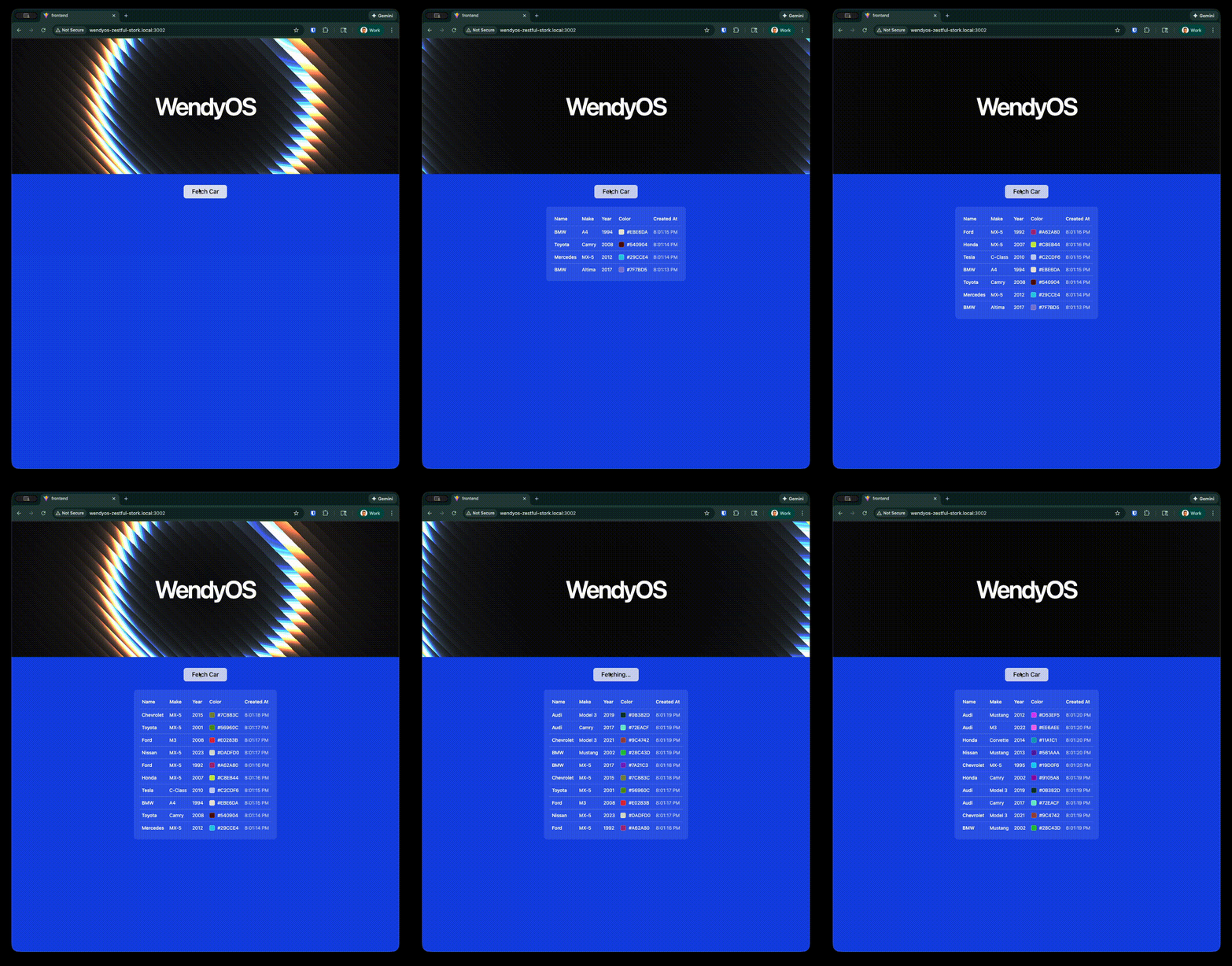
In this guide, we'll build a complete web application with a modern React frontend (using Vite, TypeScript, and shadcn/ui) and a FastAPI backend. The app displays an animated shader background with "WendyOS" text and includes an interactive feature to fetch and display random car data from an API.
This demonstrates how to:
- Serve a production-built React frontend from a Python backend
- Create API endpoints that the frontend can consume
- Deploy the entire stack as a single container to your WendyOS device
Prerequisites
- Wendy CLI installed on your development machine
- Node.js 22+ and npm installed (for building the frontend)
- Python 3.14 installed
- Docker installed (see Docker Installation)
- A WendyOS device plugged in over USB or connectable over Wi-Fi
Project Structure
web-app/
├── Dockerfile
├── wendy.json
├── frontend/           # Vite + React + TypeScript + shadcn/ui
│   ├── package.json
│   ├── src/
│   │   ├── App.tsx
│   │   └── components/
│   └── ...
└── server/             # FastAPI backend
    ├── app.py
    └── requirements.txt
Setting Up Your Project
Create the Project Structure
Create the directory structure for your project:
mkdir -p web-app/frontend web-app/server
cd web-app
Create the Frontend
Initialize a Vite React TypeScript project:
cd frontend
npm create vite@latest . -- --template react-ts
npm install
npm install -D tailwindcss @tailwindcss/vite
Initialize shadcn/ui:
npx shadcn@latest init --defaults
npx shadcn@latest add button table
Create the Frontend App
Replace src/App.tsx with the following:
import { useState } from "react";
import { Button } from "@/components/ui/button";
import {
  Table,
  TableBody,
  TableCell,
  TableHead,
  TableHeader,
  TableRow,
} from "@/components/ui/table";

interface Car {
  name: string;
  make: string;
  year: number;
  color: string;
  createdAt: string;
}

function App() {
  const [cars, setCars] = useState<Car[]>([]);
  const [loading, setLoading] = useState(false);

  const fetchCar = async () => {
    setLoading(true);
    try {
      const response = await fetch("/api/random-car");
      const car: Car = await response.json();
      setCars((prev) => [car, ...prev].slice(0, 10));
    } catch (error) {
      console.error("Failed to fetch car:", error);
    } finally {
      setLoading(false);
    }
  };

  return (
    <div className="flex min-h-screen w-full flex-col items-center bg-blue-700 p-8">
      <h1 className="text-7xl font-semibold text-white mb-8">WendyOS</h1>

      <Button
        onClick={fetchCar}
        disabled={loading}
        size="lg"
        variant="secondary"
      >
        {loading ? "Fetching..." : "Fetch Car"}
      </Button>

      {cars.length > 0 && (
        <div className="mt-8 w-full max-w-4xl rounded-lg bg-white/10 p-4">
          <Table>
            <TableHeader>
              <TableRow className="border-white/20">
                <TableHead className="text-white">Name</TableHead>
                <TableHead className="text-white">Make</TableHead>
                <TableHead className="text-white">Year</TableHead>
                <TableHead className="text-white">Color</TableHead>
              </TableRow>
            </TableHeader>
            <TableBody>
              {cars.map((car, index) => (
                <TableRow key={index} className="border-white/20">
                  <TableCell className="text-white">{car.name}</TableCell>
                  <TableCell className="text-white">{car.make}</TableCell>
                  <TableCell className="text-white">{car.year}</TableCell>
                  <TableCell className="text-white">
                    <div className="flex items-center gap-2">
                      <div
                        className="w-4 h-4 rounded"
                        style={{ backgroundColor: car.color }}
                      />
                      {car.color}
                    </div>
                  </TableCell>
                </TableRow>
              ))}
            </TableBody>
          </Table>
        </div>
      )}
    </div>
  );
}

export default App;
Build the frontend:
npm run build
cd ..
Create the FastAPI Backend
Create server/requirements.txt:
fastapi
uvicorn[standard]
Create server/app.py:
import os
import random
from datetime import datetime, timezone
from pathlib import Path
from fastapi import FastAPI
from fastapi.staticfiles import StaticFiles
from fastapi.responses import FileResponse, JSONResponse

app = FastAPI()

CAR_NAMES = ["Honda", "Toyota", "Ford", "Chevrolet", "BMW", "Mercedes", "Audi", "Tesla", "Nissan", "Mazda"]
CAR_MAKES = ["Civic", "Camry", "Mustang", "Corvette", "M3", "C-Class", "A4", "Model 3", "Altima", "MX-5"]

def random_car():
    return {
        "name": random.choice(CAR_NAMES),
        "make": random.choice(CAR_MAKES),
        "year": random.randint(1990, 2024),
        "color": f"#{random.randint(0, 0xFFFFFF):06X}",
        "createdAt": datetime.now(timezone.utc).isoformat(),
    }

# Determine frontend dist path
container_path = Path("/app/frontend/dist")
local_path = Path(__file__).parent.parent / "frontend" / "dist"

if os.environ.get("FRONTEND_DIST"):
    frontend_dist = os.environ["FRONTEND_DIST"]
elif container_path.exists():
    frontend_dist = str(container_path)
else:
    frontend_dist = str(local_path)

hostname = os.environ.get("WENDY_HOSTNAME", "0.0.0.0")

print(f"Serving frontend from: {frontend_dist}")

# API routes
@app.get("/api/random-car")
async def get_random_car():
    return JSONResponse(random_car())

# Mount static files for assets
assets_path = Path(frontend_dist) / "assets"
if assets_path.exists():
    app.mount("/assets", StaticFiles(directory=str(assets_path)), name="assets")

@app.get("/{full_path:path}")
async def serve_spa(full_path: str):
    """Serve the SPA - return index.html for all routes"""
    file_path = Path(frontend_dist) / full_path
    if file_path.is_file():
        return FileResponse(file_path)
    return FileResponse(f"{frontend_dist}/index.html")

if __name__ == "__main__":
    import uvicorn
    print(f"Server running on http://{hostname}:3002")
    # Bind to 0.0.0.0 to accept connections from all interfaces (required for container networking)
    uvicorn.run(app, host="0.0.0.0", port=3002)
API Endpoint: The /api/random-car endpoint returns a randomly generated car object with name, make, year, color, and timestamp. The frontend fetches this data and displays the last 10 cars in a table.
Create the Dockerfile
Create a Dockerfile in the project root:
# Build frontend
FROM node:22-slim AS frontend-builder

WORKDIR /app/frontend
COPY frontend/package*.json ./
RUN npm ci
COPY frontend/ ./
RUN npm run build

# Runtime stage
FROM ghcr.io/astral-sh/uv:python3.14-bookworm-slim

WORKDIR /app

# Install dependencies during build
RUN uv pip install --system fastapi "uvicorn[standard]"

# Copy server files
COPY server/requirements.txt ./
COPY server/app.py ./

# Copy the built frontend
COPY --from=frontend-builder /app/frontend/dist ./frontend/dist

ENV FRONTEND_DIST=/app/frontend/dist

EXPOSE 3002

CMD ["uvicorn", "app:app", "--host", "0.0.0.0", "--port", "3002"]Important: The server binds to 0.0.0.0 to accept connections from all network interfaces. This is required for container networking on WendyOS.
Create wendy.json
Create a wendy.json file:
{
  "appId": "com.example.python-web-app",
  "version": "0.0.1",
  "entitlements": [
    { "type": "network" }
  ],
  "readiness": {
    "tcpSocket": { "port": 3002 },
    "timeoutSeconds": 30
  },
  "hooks": {
    "postStart": {
      "cli": "open http://${WENDY_HOSTNAME}:3002"
    }
  }
}
The readiness probe tells the CLI to wait until port 3002 is accepting connections before proceeding. The postStart hook automatically opens your browser once the app is ready.
Linux users: Replace open with xdg-open in the postStart hook:
"cli": "xdg-open http://${WENDY_HOSTNAME}:3002"Deploy to WendyOS Device
Deploy your full-stack web application to your WendyOS device:
wendy runYou'll see output as the CLI builds both the frontend and backend, then deploys the container:
wendy run
✔︎ Searching for WendyOS devices [5.0s]
✔︎ Which device do you want to run this app on?: True Probe [USB, Ethernet, LAN]
✔︎ Builder ready [0.1s]
✔︎ Container built and uploaded successfully!
✔ Success
  Started app
Server running on http://wendyos-true-probe.local:3002
Serving frontend from: /app/frontend/dist
Test Your Web App
Your browser will open automatically once the app is ready, thanks to the postStart hook. If it doesn't, navigate to:
http://wendyos-true-probe.local:3002Replace the hostname: Each WendyOS device has a unique hostname. Replace wendyos-true-probe with your device's actual hostname shown in the CLI output.
You should see:
- The "WendyOS" heading
- A "Fetch Car" button
- When you click the button, a table appears showing randomly generated car data
- Each click adds a new car to the top of the table (keeping the last 10)
Test the API Directly
You can also test the API endpoint directly:
curl http://wendyos-true-probe.local:3002/api/random-carResponse:
{"name":"Toyota","make":"Camry","year":2015,"color":"#A4F2C1","createdAt":"2024-01-15T10:30:00.000Z"}Learn More
Next Steps
Now that you have a full-stack web app running:
- Add more API endpoints for CRUD operations
- Implement real-time updates with WebSockets
- Connect to WendyOS device sensors and display data in the UI
- Add authentication to protect your API
- Use a database for persistent storage